
The Ultimate BGMI Hub
Everything Battlegrounds Mobile India — news, esports, players, teams, tools and more.
BGMI Now
Everything happening in BGMI right now.
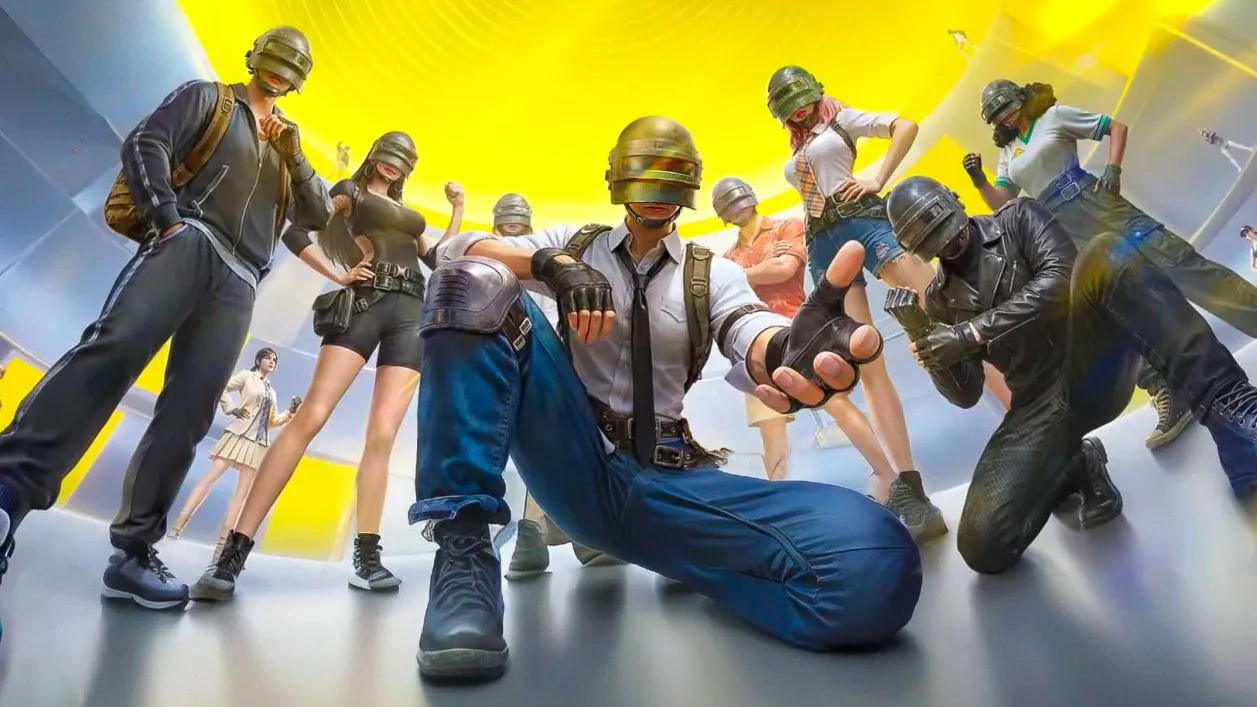 LATEST UPDATE • 4.5 LIVE
 Naruto: Ninjas Assemble Is Live
4.5 update Jul 16–Sep 14, 2026 — Naruto abilities, Kurama Boss Battle & 5th Anniversary Royale Pass. Next: 4.6 Midnight Hunters Sep 15.
Live now • 12.4K views
BGIS 2026 • COMPLETED iQOO Soul Crowned BGIS 2026 Champions
S8UL Soul wins Break Boundaries Grand Finals Mar 27–29 at Chennai Trade Centre — ₹4,00,00,000 prize pool, 24 finalists.
Mar 29, 2026 • 12.4K views
UPCOMING • BMSD 2026 Battlegrounds Showdown 2026 Starts Sep 22
48 invited teams battle Sep 22–Oct 18, 2026 for ₹1,00,00,000 & PMGC 2026 slot — Top 8 to BMIC.
Sep 22, 2026 • 12.4K views
BMPS 2026 • COMPLETED GodLike Wins BMPS 2026 Forging The Future
Hero Xtreme GodLike clinches Jaipur Finals Jun 9–21, 2026 — ₹4,00,00,000, 32 teams. KIE #1 (1840 pts).
Jun 21, 2026 • 12.4K views
BGMI 4.5 — Naruto: Ninjas Assemble
Naruto: Ninjas Assemble live Jul 16 – Sep 14, 2026. Ninja abilities, Kurama Boss Battle & 5th Anniversary collabs (Naruto × Marvel Spider-Man × Ferrari). Next: 4.6 Midnight Hunters lands Sep 15, 2026.
Fresh content, enhanced gameplay
BGMI Esports
Follow tournaments, teams, players and competitive BGMI.
 COMPLETED ₹4,00,00,000
 BGIS 2026 — Break Boundaries
Mar 12 – Mar 29, 2026 · Chennai • 24 Teams
View Results COMPLETED ₹4,00,00,000 BMPS 2026 — Forging The Future
Jun 9 – Jun 21, 2026 · Jaipur • 32 Teams
Highlights UPCOMING ₹1,00,00,000 BMSD 2026 — Road to PMGC
Sep 22 – Oct 18, 2026 • 48 Teams
Format & ScheduleLatest BGMI News
Stay informed with the latest BGMI coverage.
 Updates
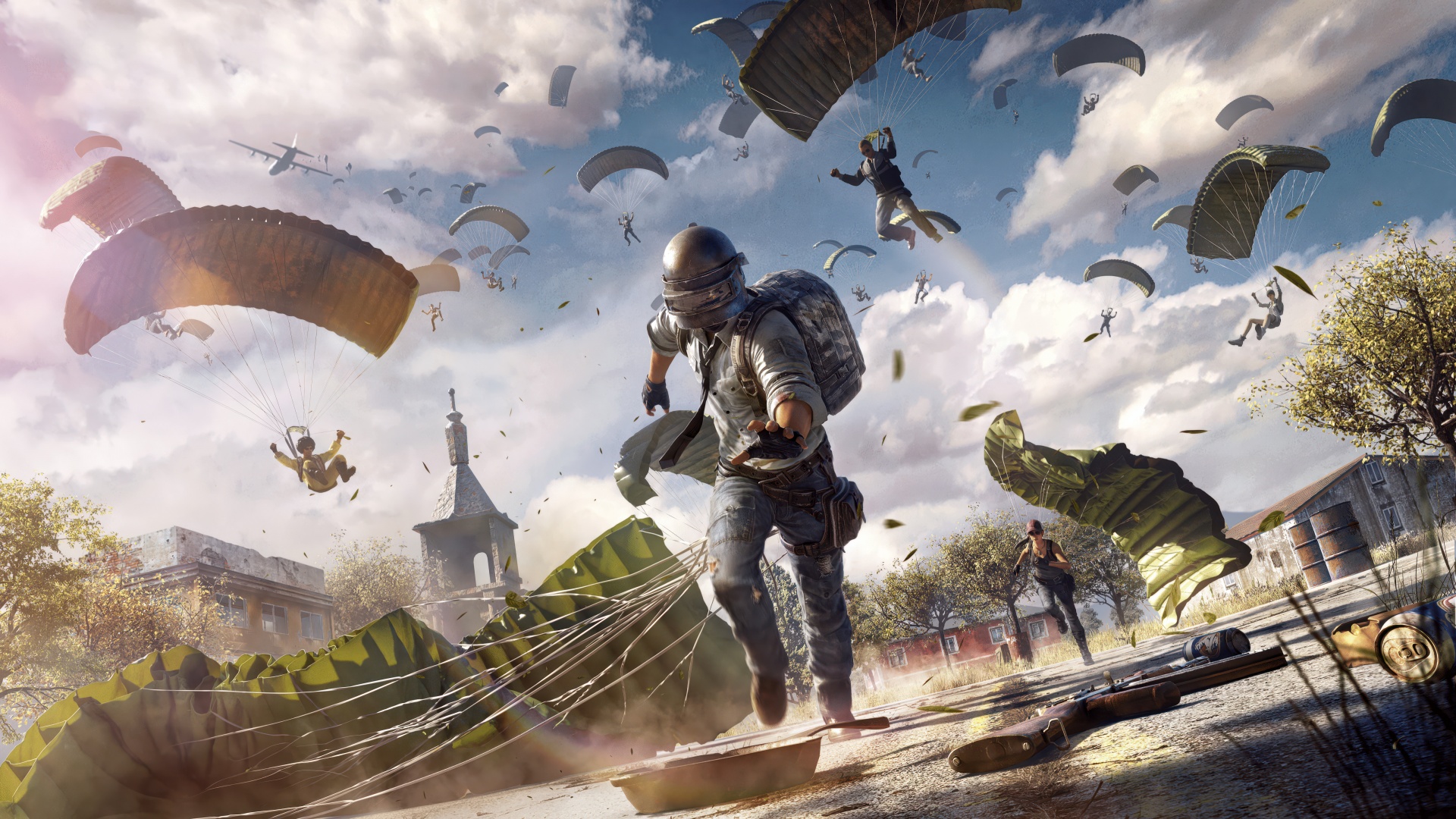
 BGMI 4.5 Patch Notes: Naruto Abilities & Kurama Boss
Full 4.5 breakdown — Silver Moon Chain, Scarlet Tonic, Kurama battle & Royale Pass. Source: battlegroundsmobileindia.com/news
Jul 16, 2026 • 8.2K views
Esports BGIS 2026: iQOO Soul Lift Trophy at ₹4 Cr Finals
Soul beats GodLike by 3 pts in Chennai — LEGIT 38 finishes, Goblin Fan Favourite. Prize: ₹1 Cr to champions.
Mar 29, 2026 • 8.2K views
Events KRAFTON Announces BMSD 2026 — Road to PMGC & BMIC
Top 8 BMSD to BMIC Oct 31–Nov 2 Delhi, winner to PMGC. Format: Survival → Semi → LC → Finals.
Aug 22, 2026 • 8.2K views
Features 4.6 Midnight Hunters Teased: Vampire Theme Sep 15
Gothic update: Bat wings, Blood Barrier, Zombie Trail & Coffin Defence Trial. ~1.4GB.
Sep 5, 2026 • 8.2K views
Guides Best Sensitivity for Ranked — Pro Settings (JONATHAN, LEGIT)
Gyro, ADS & non-gyro configs verified vs pro HUDs. Includes 120 FPS emulator tuning.
Updated Weekly • 8.2K views
Player Spotlight
Meet the players dominating the BGMI battlefield.
JONATHAN
GodLike Esports • Assaulter
Country: IN
"BGIS 2025 MVP · 900+ finishes · 7.2M YouTube"
View profile Goblin
iQOO Soul (S8UL) • Fragger
Country: IN
"900+ official finishes · Fan Favourite 2026"
View profile LEGIT
iQOO Soul (S8UL) • Assaulter
Country: IN
"BGIS 2026 Champion · 38 finishes"
View profileTop BGMI Teams
The organizations shaping competitive BGMI.
S8UL Esports — iQOO Soul
India
Roster
Goblin, LEGIT, Joker, Nakul (IGL), Omega
BGIS 2026 Champions · $515K earnings · 88 titles
View team GodLike Esports — Hero Xtreme
India
Roster
JONATHAN, Admino, ZGOD, Simp, Jelly
KIE #1 1840 pts · BMPS 2026 Champions
View team Orangutan Gaming — iQOO Or
India
Roster
AKop, Attanki, WizzGod, Ash
BMSD 2025 Champions · $324K earnings
View teamBGMI Tools
Everything you need to level up your BGMI experience.
BGMI NAME STYLE
Generate stylish BGMI names with custom fonts, symbols, and formatting options.
Try ItSENSITIVITY
Find or create BGMI sensitivity settings tailored to your playstyle and device.
ExploreGUIDES
Helpful BGMI guides and tutorials covering everything from basics to advanced strategies.
BrowseSETTINGS
BGMI settings and optimization guides for the best possible gameplay experience.
ViewNeed UC?
Get BGMI UC through our trusted partner. Fast, safe, and reliable.
Download BGMI
Get BGMI on your mobile device and jump into the battleground.